
Recording Consent
Ask people for permission to record, and manage who may record you
Read this first
You are responsible for the recordings you make. The rules differ by country and by state, and they can change. Tagup gives you the tools to ask and to keep a record of the answer. It does not give legal advice, and a setting in the app is not a legal opinion about your situation.
How it works
Before Tagup records a contact, one of two things has to be true.
The contact says yes
You send a request. They open a link and answer it themselves. Their answer is the record.
You state you already have permission
You turn on a switch that says you have their permission. This is your own statement, not theirs. Tagup stores the date you made it.
Tagup keeps these two apart, and always shows which one is in play. A switch you turned on never reads as "they agreed".
Choose when Tagup asks
Go to Settings and find Recording & Transcription Consent. Pick one of three options. The choice applies to every contact.
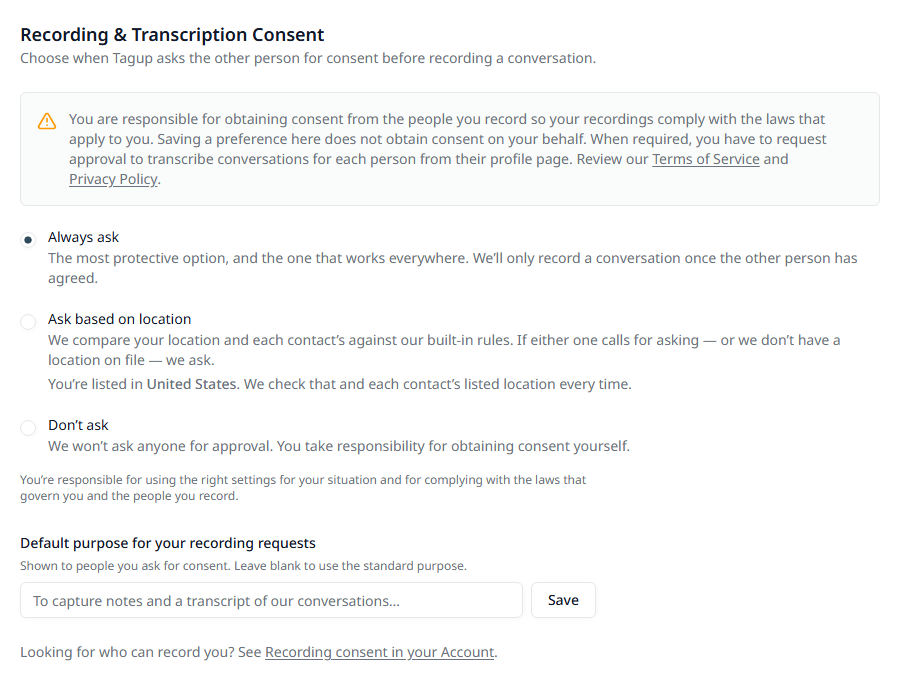
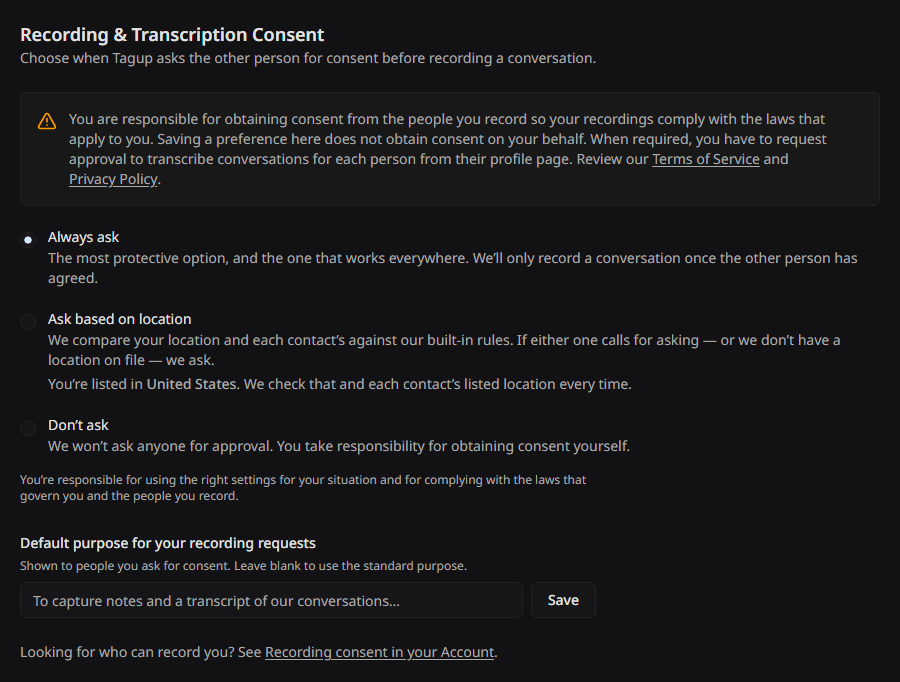
Below the options you can write a default purpose in your own words. Tagup falls back to it when a request goes out with no purpose of its own. Leave it blank to use the standard wording. When you ask somebody yourself, you pick the purpose in the request form.
Ask one contact
Open the contact, press Edit, and scroll to Recording Approval.
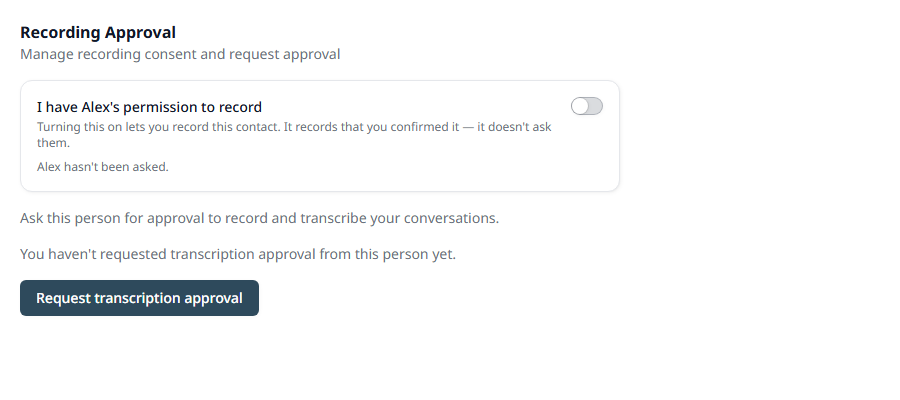
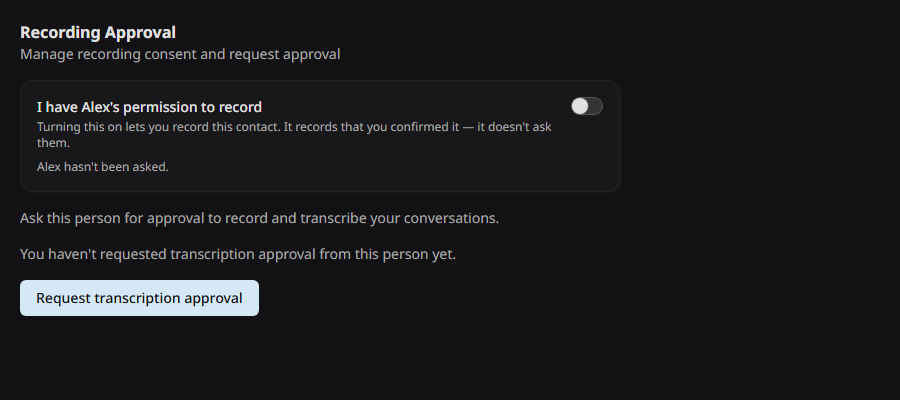
The contact needs an email address on their record. Add one first if it is missing, or the request has nowhere to go.
Send the request
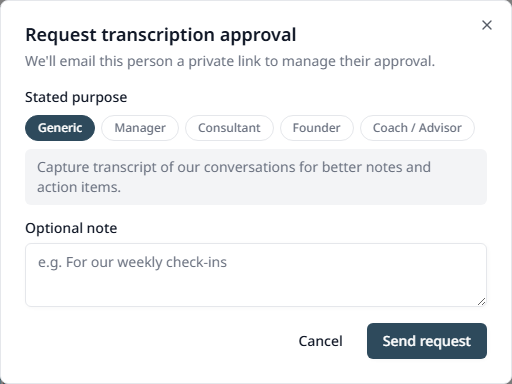
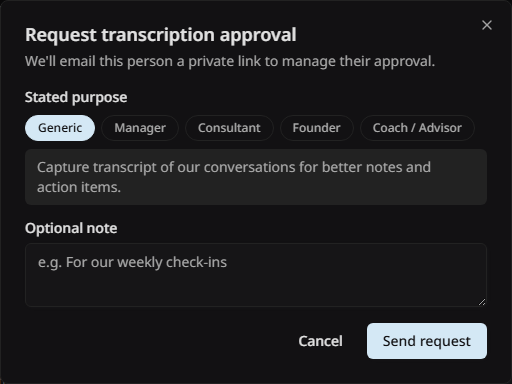
Press Request transcription approval. A short form opens. Nothing is sent until you press Send request.
Stated purpose
Pick the line that fits your work. The contact reads this exact sentence, and it is the main thing they use to decide. Five choices cover most cases:
The full sentence appears under the chips, so you read it before you send it. The form opens on the purpose you last used with this contact, and on Generic if you have not asked them before.
Optional note
A line in your own words, up to 500 characters, such as "For our weekly check-ins". Use it when the purpose alone does not explain why you are asking this person.
After you ask
The section changes to show where the request stands. You see the date you sent it, whether the contact has answered, and their own switch, which only they can change.
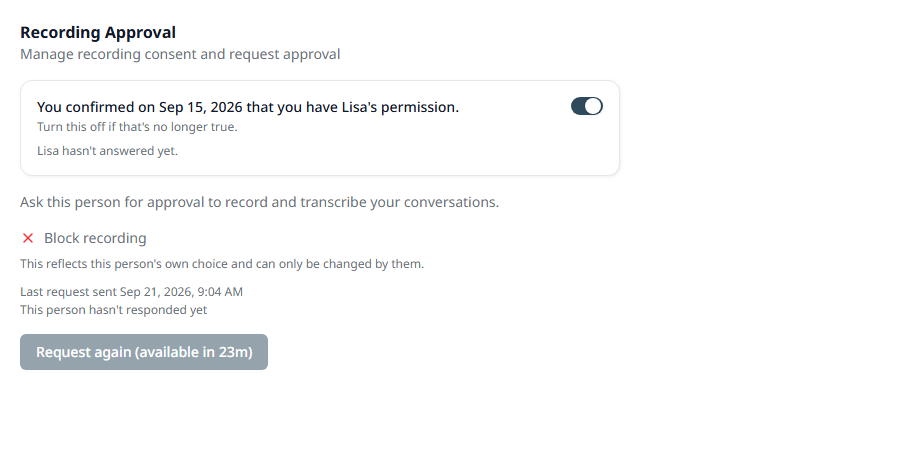
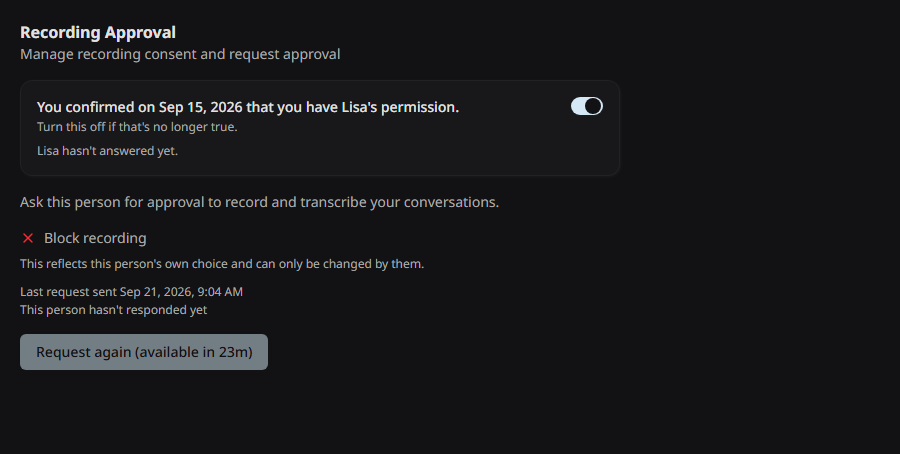
If they have not answered, you can ask again. Tagup waits an hour between requests, and the button says how long is left. That gap is deliberate: a consent request that arrives twice an hour reads as pressure, and pressure is not consent.
What the contact sees
Tagup emails them a private link. The link opens a page of their own. They do not need a Tagup account, and they do not have to sign in.
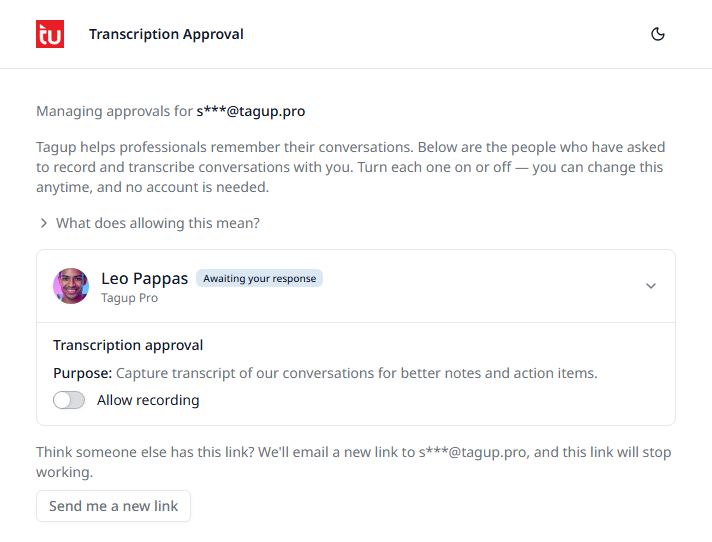
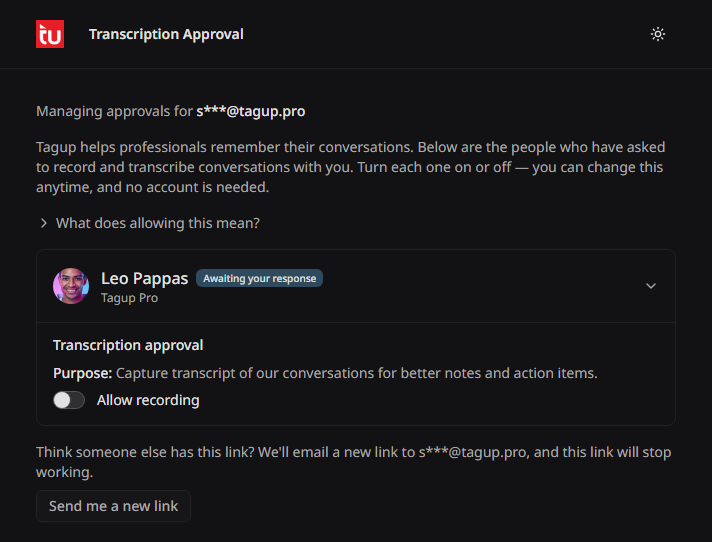
One card for each person who asked
Each card names the person, shows the purpose they chose, and holds one switch: Allow recording. If several people have asked, they answer each one on its own. The page says Awaiting your response until they do.
They can change their mind
The same link works later. They can turn an approval off at any time, and it takes effect at once.
They can replace the link
If they think somebody else has the link, they press Send me a new link. Tagup emails a new link to the same address, and the old link stops working.
What the page promises them
What does allowing this mean? opens a list. It is worth knowing what your contact has been told:
- • Their answer is recorded and shown to the person who asked.
- • A no stops recording — unless the requester tells Tagup they already have permission.
- • A transcript exists only when they approve and the Tagup user chooses to record.
- • The audio is used to make the transcript and is not saved.
- • Nothing is sent to them automatically. A shared conversation arrives as its own email.
- • Tagup stores no biometric data and no screen captures.
- • Tagup cannot delete a shared transcript for them. They have to ask the person who sent it.
- • The answer has an end date. At the time of writing it lasts 12 months, and Tagup asks again before it runs out.
The permission switch
The same section holds a switch that reads "I have [name]'s permission to record". Turn it on when you already have their agreement in another form, for example in writing or at the start of a call.
The switch unblocks recording for that contact. It records that you confirmed it, with the date. It does not ask the contact, and it does not change their answer.
The contact's own answer is always shown next to the switch, so you can see both facts at once. Turn the switch off to withdraw your statement.
When recording is blocked
If your setting calls for asking and nothing is on file, the record button is replaced by a short notice. The notice says why, and it always gives you something to do, right there in the form:
Your notes are safe. Every action in the notice works in place, so nothing you typed is lost.
Location is a rough guide
The Ask based on location setting reads the location on your account and the location on the contact's record. That is where a person is based. It is not where they were sitting during the call.
Tagup says so in the notice, and it stops there. Treat the result as a prompt to think, not as an answer.
Permission expires
An answer does not last for ever. Tagup shows the date each one runs out, and warns you before it does. The warning appears where you record, so you see it in time to ask again.
After it runs out, the contact's card shows the fact and one question: ask again, or not. There is no switch left half-set, because a lapsed answer is a past event and not a current setting.
Who may record you
Other people can ask you for the same permission. Press your avatar at the bottom of the left rail, then Recording Consent. The page lists every person who asked you.
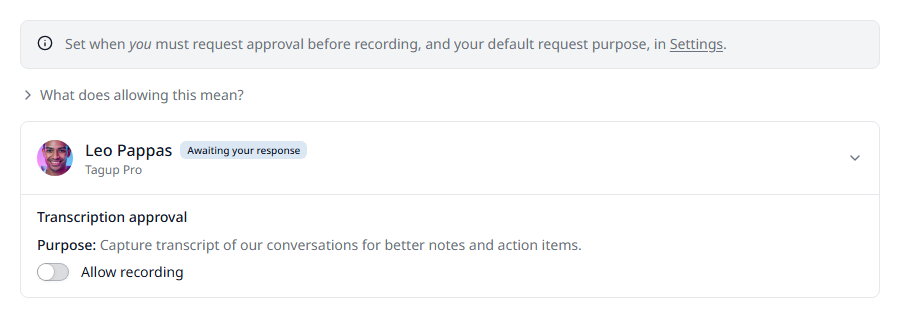
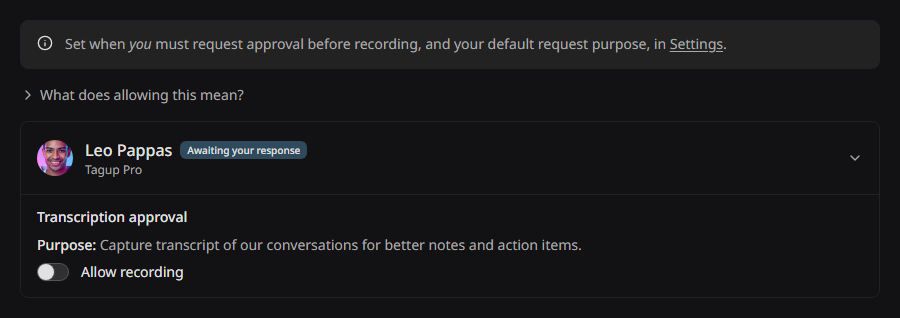
One card for each request
Each card names the person who asked and the purpose they chose, and carries one Allow recording switch. Until you answer, the card says Awaiting your response.
The same list as the email link
This is the page described above, inside your account. Answer here or from the link in the email — they are two doors into one list, and the same What does allowing this mean? explanation sits above both.
Answer, and change your answer
Turn the switch on to allow recording, or leave it off to refuse. Come back whenever you like and turn it off again. The person who asked sees your answer and the date, and nothing else about you.
This is not the same as your own rules
This page is about people recording you. When Tagup asks on your behalf is a separate setting, in Settings. The page links across to it, because the two are easy to confuse.
If nobody has asked you yet, the section says so: "No one has requested transcription approval from you yet."
Good to know
- • Dictation is never blocked. Only your own voice is in it.
- • A contact who declines can be recorded only if you turn on the permission switch and take that responsibility.
- • The person you record never sees your permission switch or its date.
- • Consent controls recording. Sending the transcript is a separate step. See Sharing a Transcript.