
People
Your contacts, and everything you know about each of them
The list
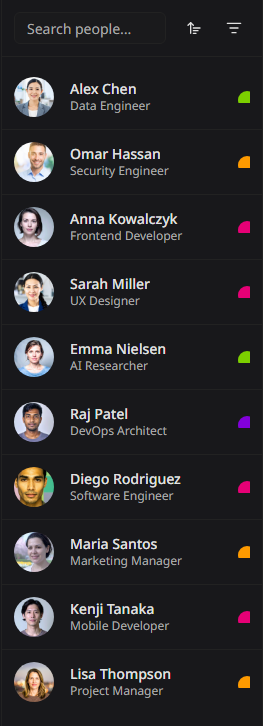
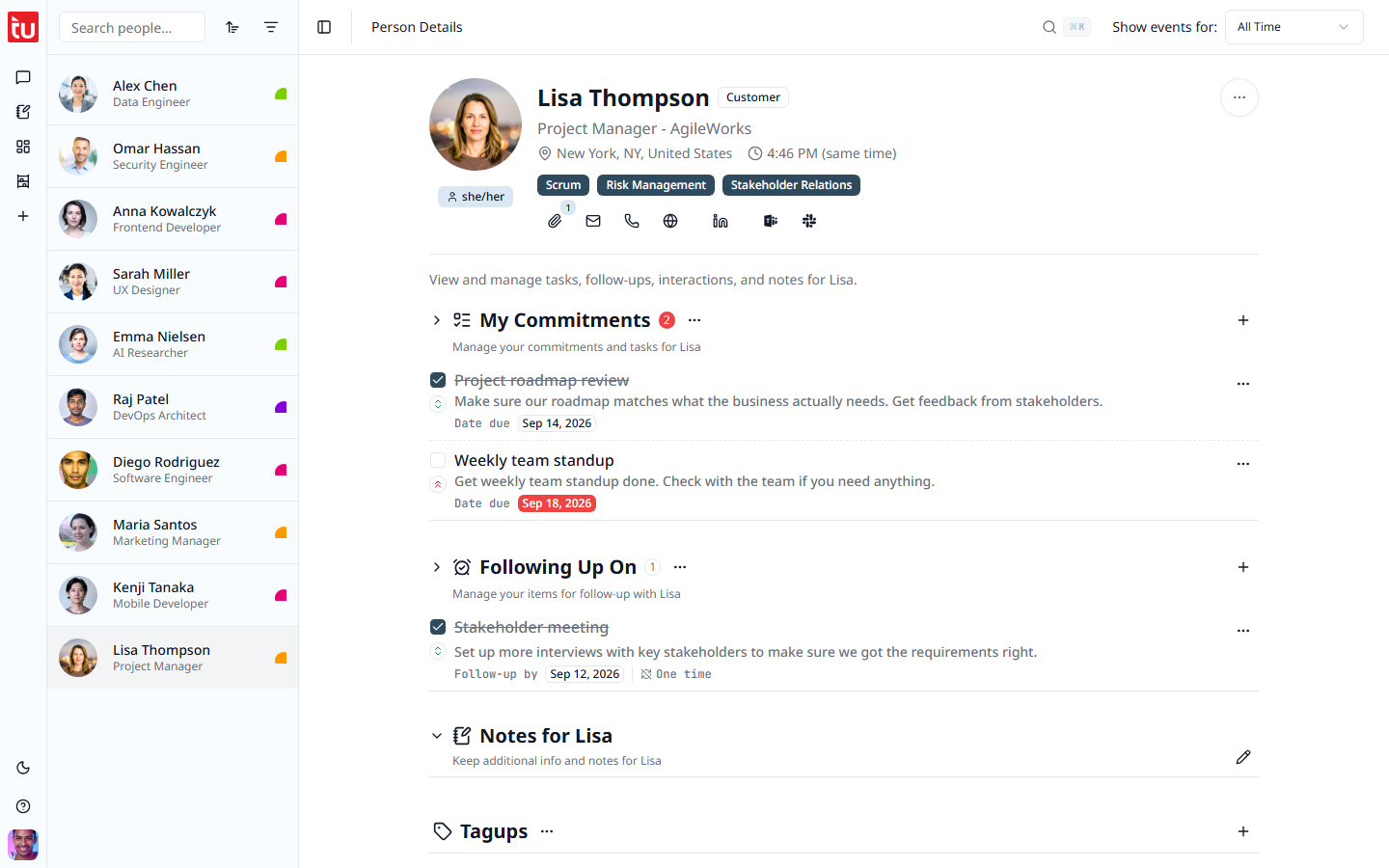
Your contacts sit in the second column on a desktop screen. On a phone, press People in the rail. Each row shows a picture, a name, a job title, and a small coloured mark for the relationship type.
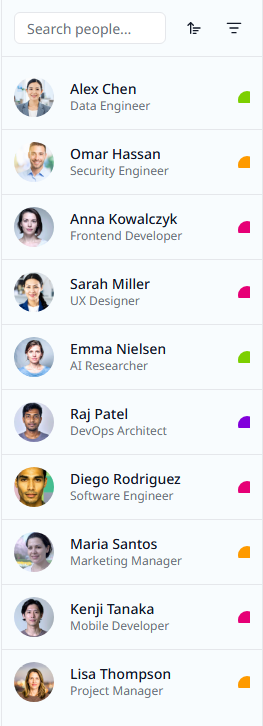
- Sort — by first name or last name, up or down
- Filter — by one or more relationship types, and by your tags
- Search — type a name in the box at the top
Add someone
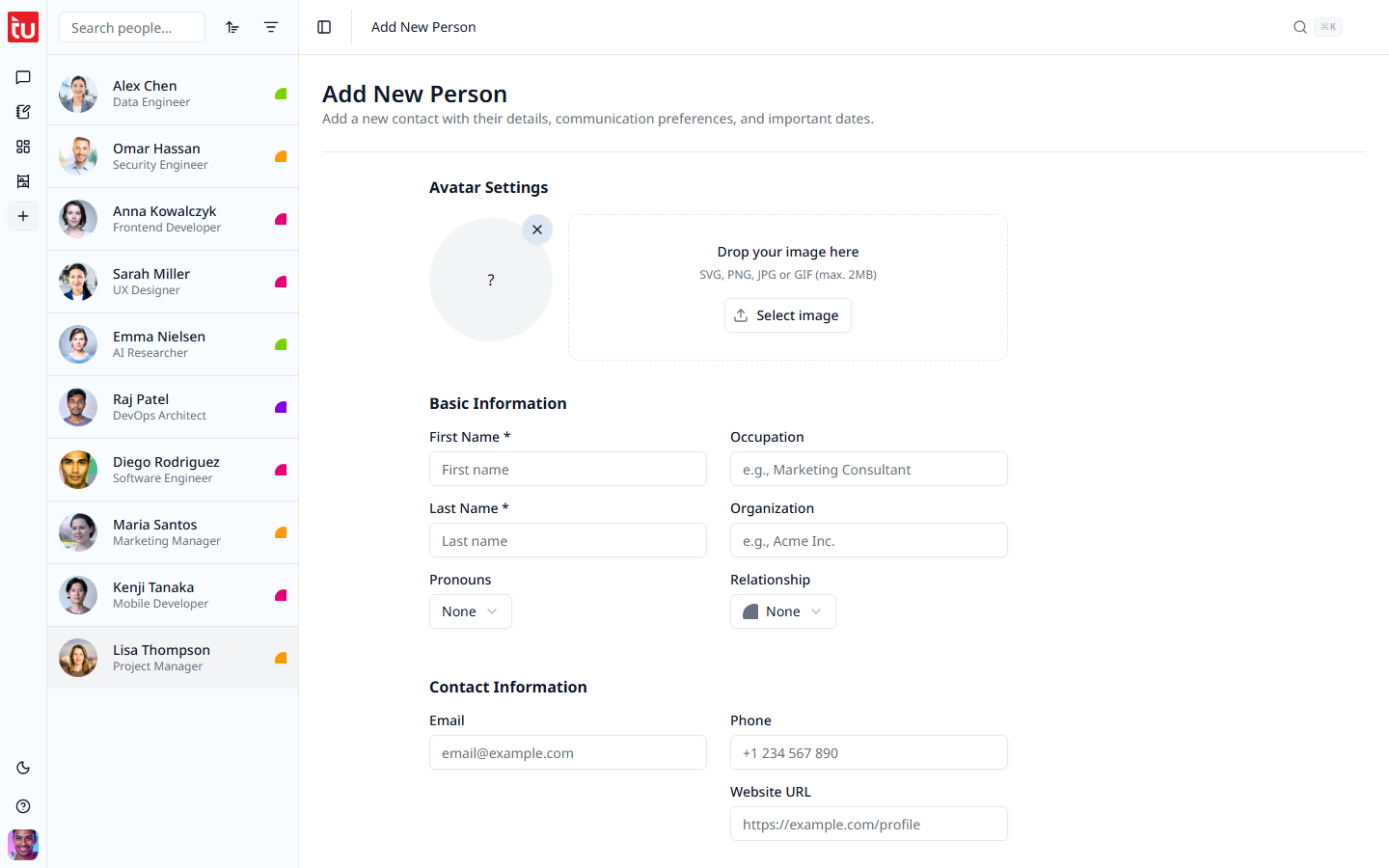
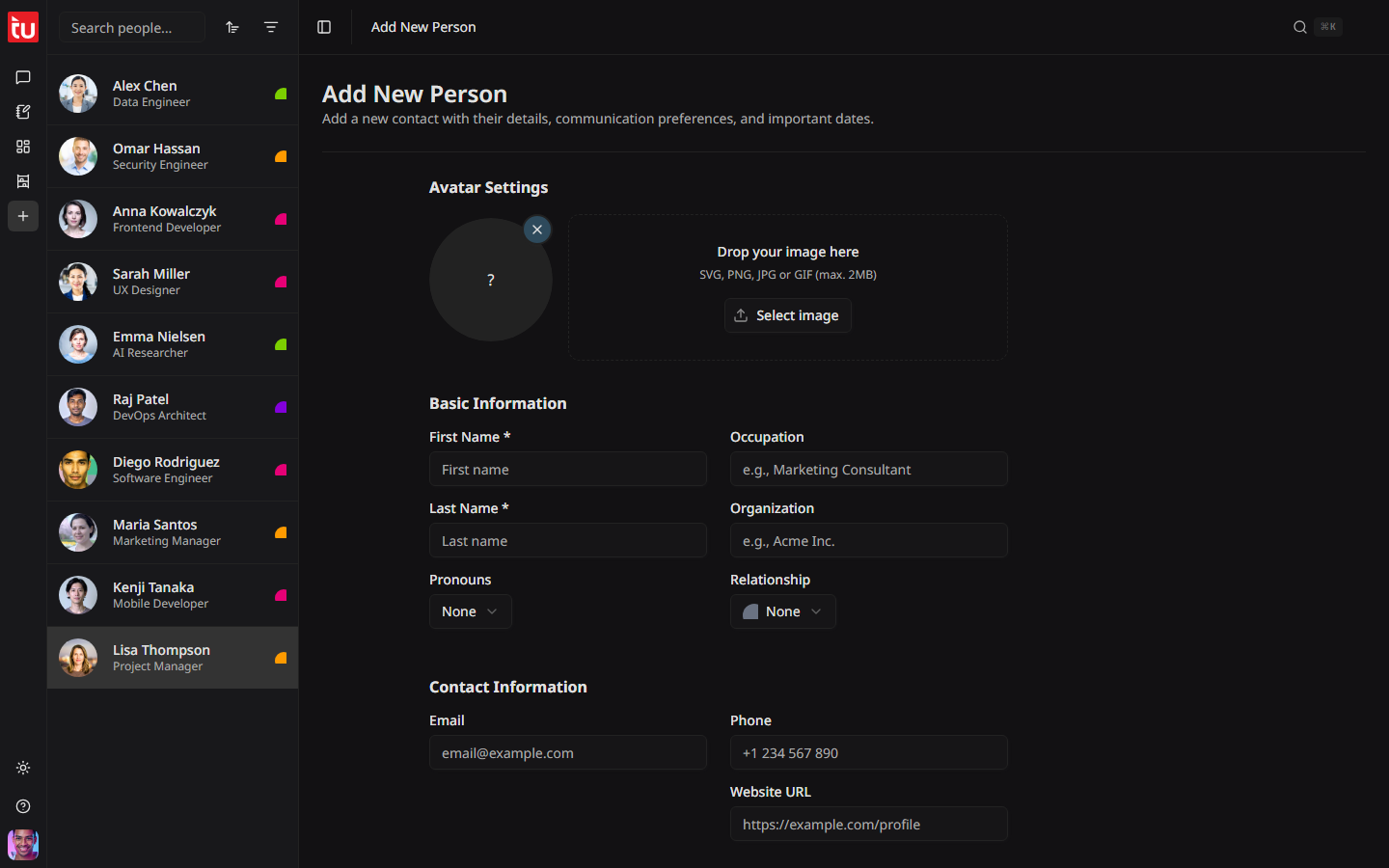
Press + in the left rail. Only the two name fields are required, so you can add a person in five seconds and fill in the rest later.
Who they are
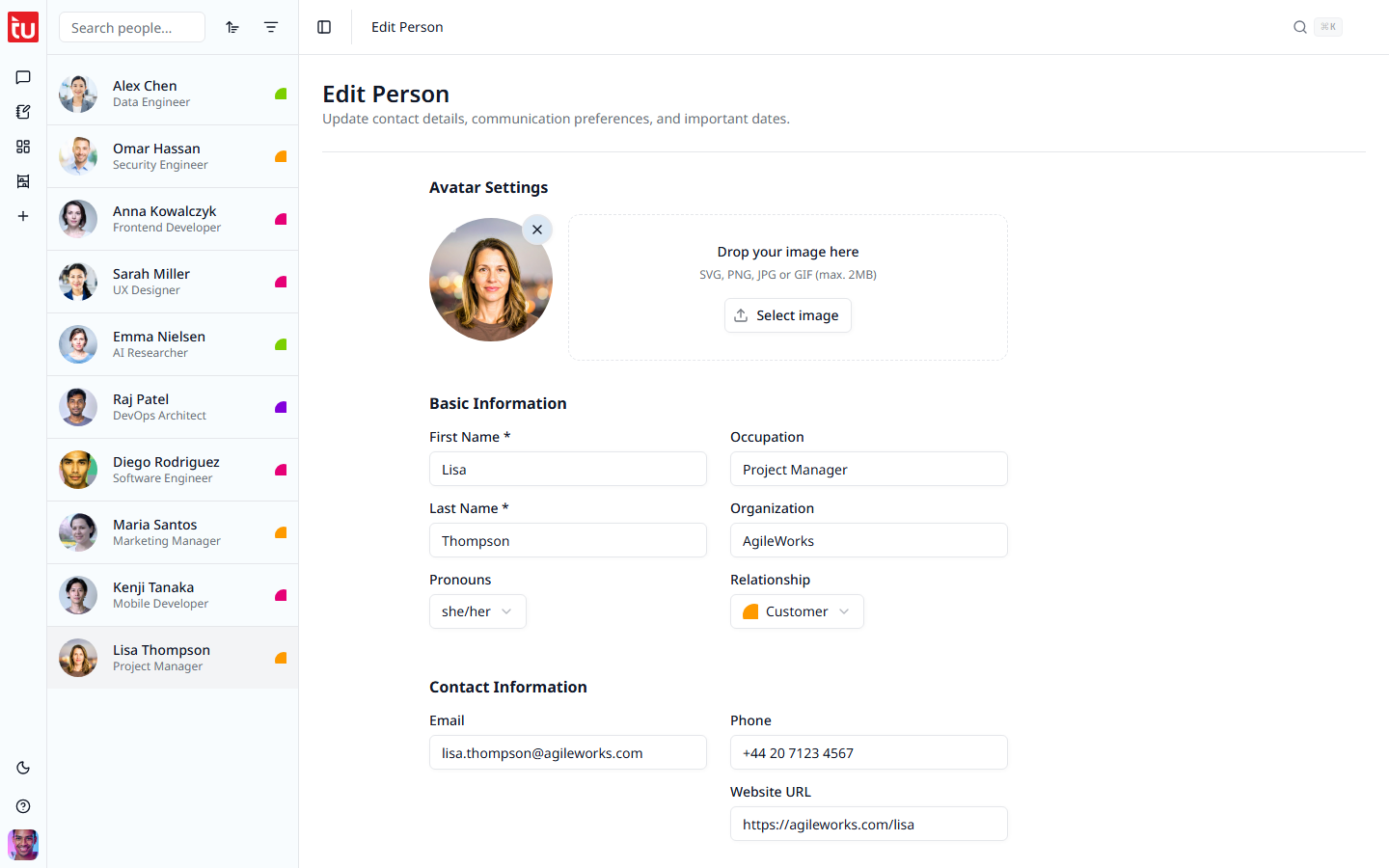
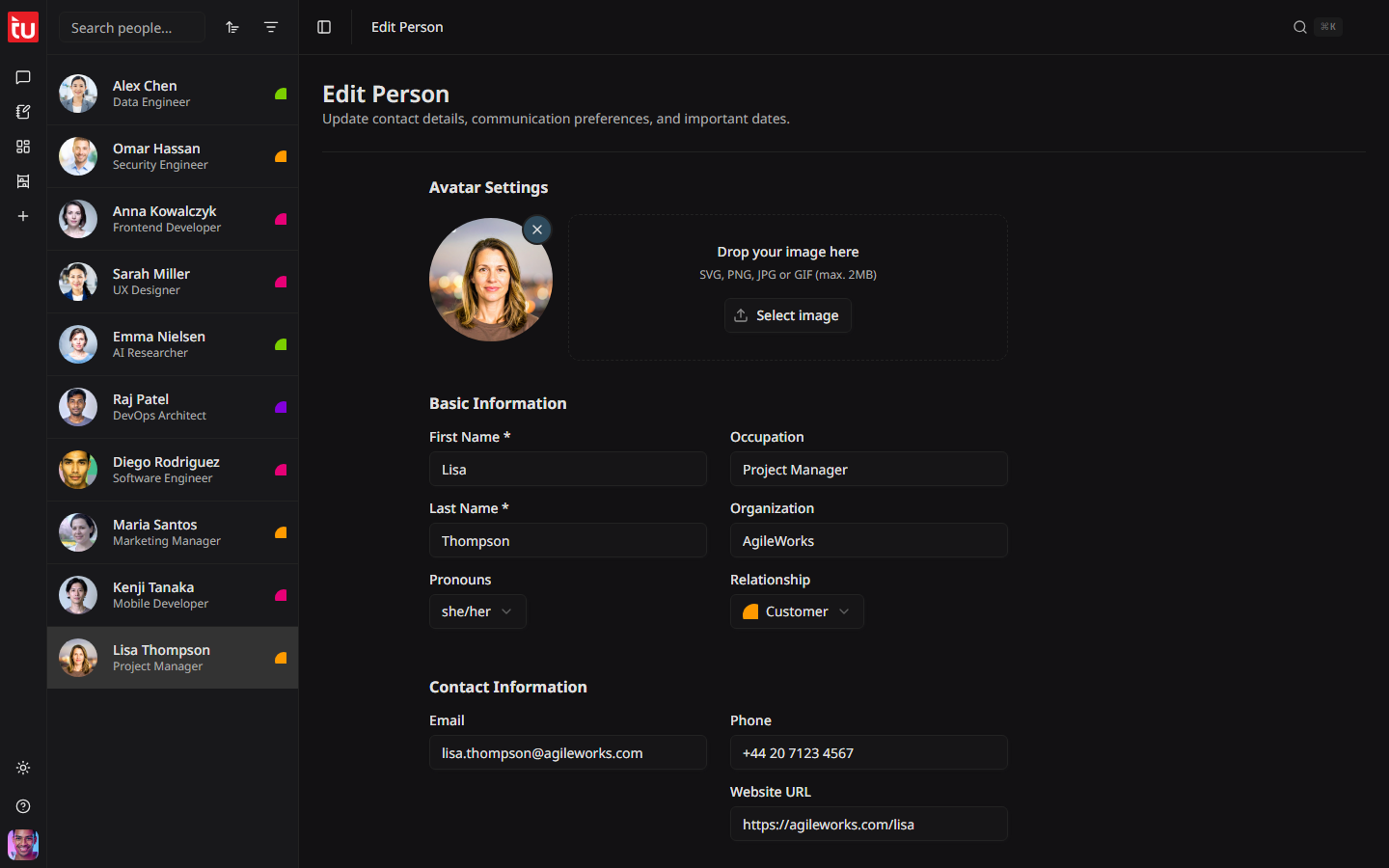
- First name and last name — the only required fields
- Occupation and organization
- Pronouns — he/him, she/her, they/them, he/they, she/they, ze/hir
- Relationship — Client, Colleague, Customer, Employee, Manager, Member, Partner, Personal, Teammate, or Vendor. Each one has its own colour.
How to reach them
- Email, phone, and website
- Links to their profiles on social sites
- Handles for WhatsApp, Telegram, WeChat, Snapchat, Viber, Signal, Slack, Discord, and Microsoft Teams
Where they are
City, state, and country. The country narrows the time zone list, so pick the country first. Once the time zone is set, the profile shows the current local time for that person.
Tags
Your own labels, such as "board" or "warm lead". You can filter the people list by them.
Significant dates
A birthday, an anniversary, a work anniversary, a wedding, a graduation, or a date of your own. Only the month and the day are stored, so you do not have to know the year.
The profile
Press a name to open it. This is where all the activity for one person lives.
The header
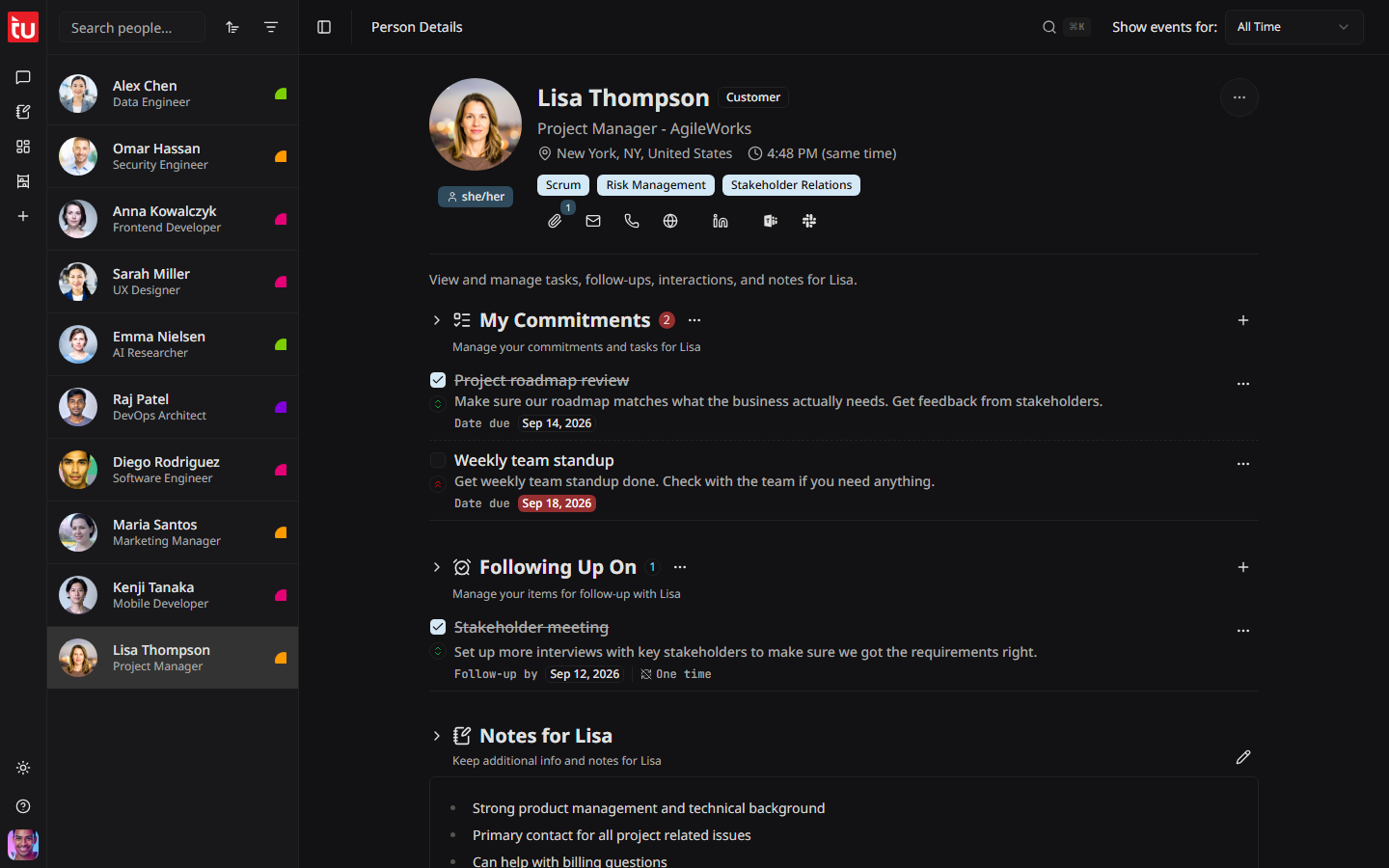
- Picture, name, and the relationship badge
- Job title and organization
- Where they are, and the time it is there right now
- Pronouns and tags
- Buttons to email, call, open their website, or open a chat app
- A paper-clip button for the files attached to this person
The sections
Press a section heading to fold it away. Set which sections a new person starts with in Settings.
The three-dot menu
- Edit Person — open the form
- Export Person — download everything you have on this person as one file
- Tasks, Follow-ups, Notes — tick marks that show or hide each section for this person alone
Edit or remove
Pick Edit Person from the three-dot menu. The form is the same one you used to add them.
Picture
Drop an image on the picture area, or press Select image. SVG, PNG, JPG, and GIF work, up to 2 MB. Without one, Tagup shows their initials.
Recording Approval
At the bottom of the form. Ask this person for permission to record your conversations, or state that you already have it. See Recording Consent.
Delete
Delete Person removes the contact and everything filed under them. The final button stays locked for a moment, so a stray press cannot do it. This cannot be undone.
Tips
- • Add a person the day you meet them, while the details are still in your head.
- • Set the time zone. Knowing it is 7 in the morning for them saves a bad call.
- • Use the same few tags for everyone. A tag used once is a tag you cannot filter by.
- • Starter plans hold 20 contacts. Pro has no limit.