
Recording & Transcripts
Record a conversation, get a written transcript, and turn it into notes
Two different tools
Tagup Pro can listen in two ways. They do different jobs, so it helps to know which one you want.
Record a conversation
You are talking with someone and you want a record of it. Tagup saves a transcript with speaker labels, and attaches it to the tagup. You start it from the tagup form or from the Conversation Hub.
Dictate
You want to speak instead of type. Tagup turns your words into text and puts them where your cursor is. Nothing is attached and nothing is kept. The microphone sits at the end of the toolbar of the Recap & Notes field, in the tagup form.
Record a conversation
Open a person, then add or edit a tagup. Below the notes you will find the Record Conversation field.
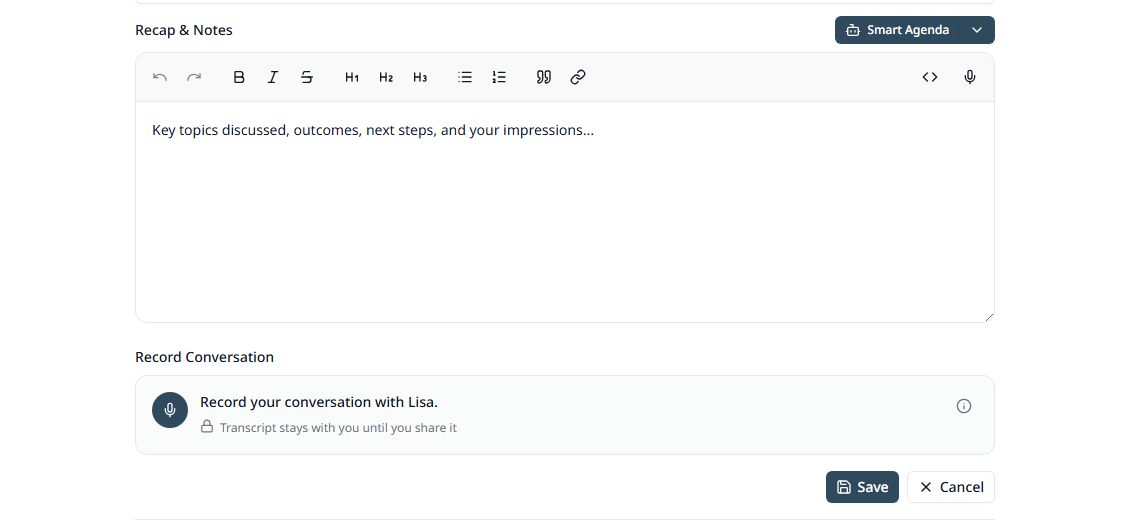
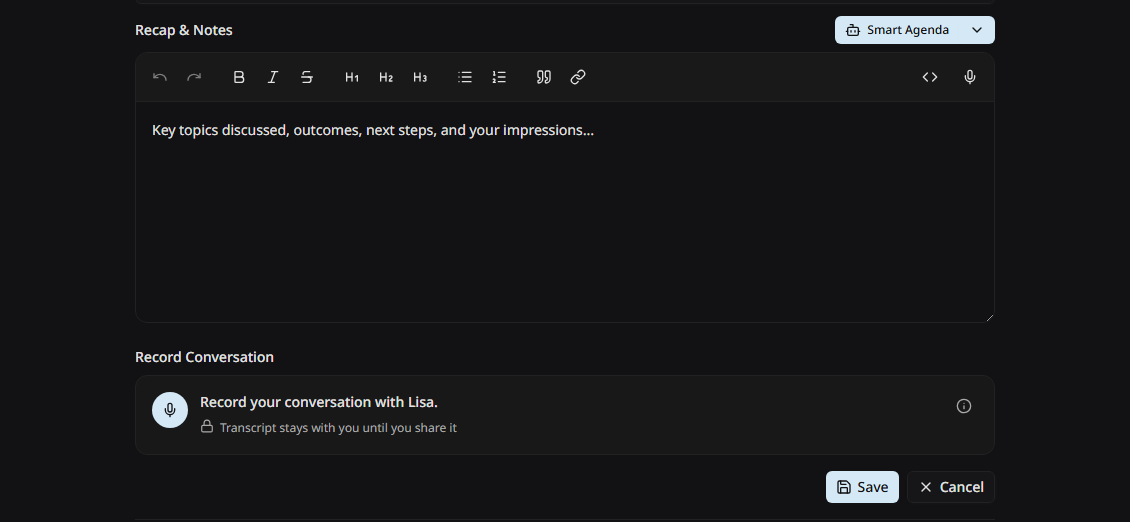
Press the round button to start
The button turns into a stop button and a level meter shows that Tagup hears you. A timer counts the length of the recording.
Press it again to stop
Tagup uploads the audio and starts to write the transcript. This takes about as long as a short wait for a page to load. You can keep typing your notes while it works.
Save the tagup
The transcript is attached to this tagup. Open it any time from the tagup in the timeline.
What Tagup hears
In a web browser, Tagup records your microphone. That is the room you are in. It does not record the other side of a phone call or a video call from inside the call software.
For a call, put your speaker on, or place the microphone where it can hear both of you. The subtitle under the record button reminds you of this while you record.
Speaker labels
A conversation recording is labelled by speaker. Tagup uses two names: your own, shown as Myself, and the name of the contact. The transcript then reads like a script.
Dictation has no speaker labels, because there is only one voice.
Smart Notes
A transcript is long. Smart Notes turns it into a short summary that you can read later. Press Smart Notes in the header of the notes editor.
Smart Notes reads two things: the transcript, and the notes you typed yourself. It writes the result into the notes field, so you can edit every word of it before you save.
With a recording — the summary covers the conversation: what you discussed, what you decided, and what each side agreed to do.
With no recording — the summary tidies up the notes you typed. This is useful after a quick call that you did not record.
Smart Agenda sits in the same place on an empty tagup with no notes and no recording. It drafts a list of topics to raise, from the history you already have with that person.
The audio is not kept
Tagup keeps the transcript. It does not keep the sound file. Once the transcript is written, the audio is deleted, and there is no way to download it or play it back.
This is deliberate. The text is the part you search, read, and share. The audio is the most sensitive part of a conversation, so it does not stay in your account.
Reading and deleting a transcript
Open the tagup in the timeline. The transcript opens in a panel with the speaker labels in place. The panel has two actions:
Recording in the Conversation Hub
The Hub can record a conversation too, and then do the follow-up work for you. Pick Record a tagup on the greeting screen, choose the person, and record.
When you press Process with Hub, the agent reads the transcript, drafts the tagup, and proposes the tasks and follow-ups it heard you promise. You confirm each one. See Conversation Hub.
Before you record someone
In many places, recording a conversation needs the agreement of the other person. Tagup can ask them for you, and can block a recording until they answer.
Read Recording Consent to set this up.
Good to know
- • Transcription uses AI credits. If your credits run out while you record, the recording stops on its own.
- • A recording under one second is dropped. That stops an accidental tap from making an empty transcript.
- • If you leave the tagup form without saving, the recording goes with it. Tagup asks first.
- • A transcript stays with you until you choose to send it. Nothing is shared on its own.