
Account & Profile
Your own details, your login email, and your password
Open it
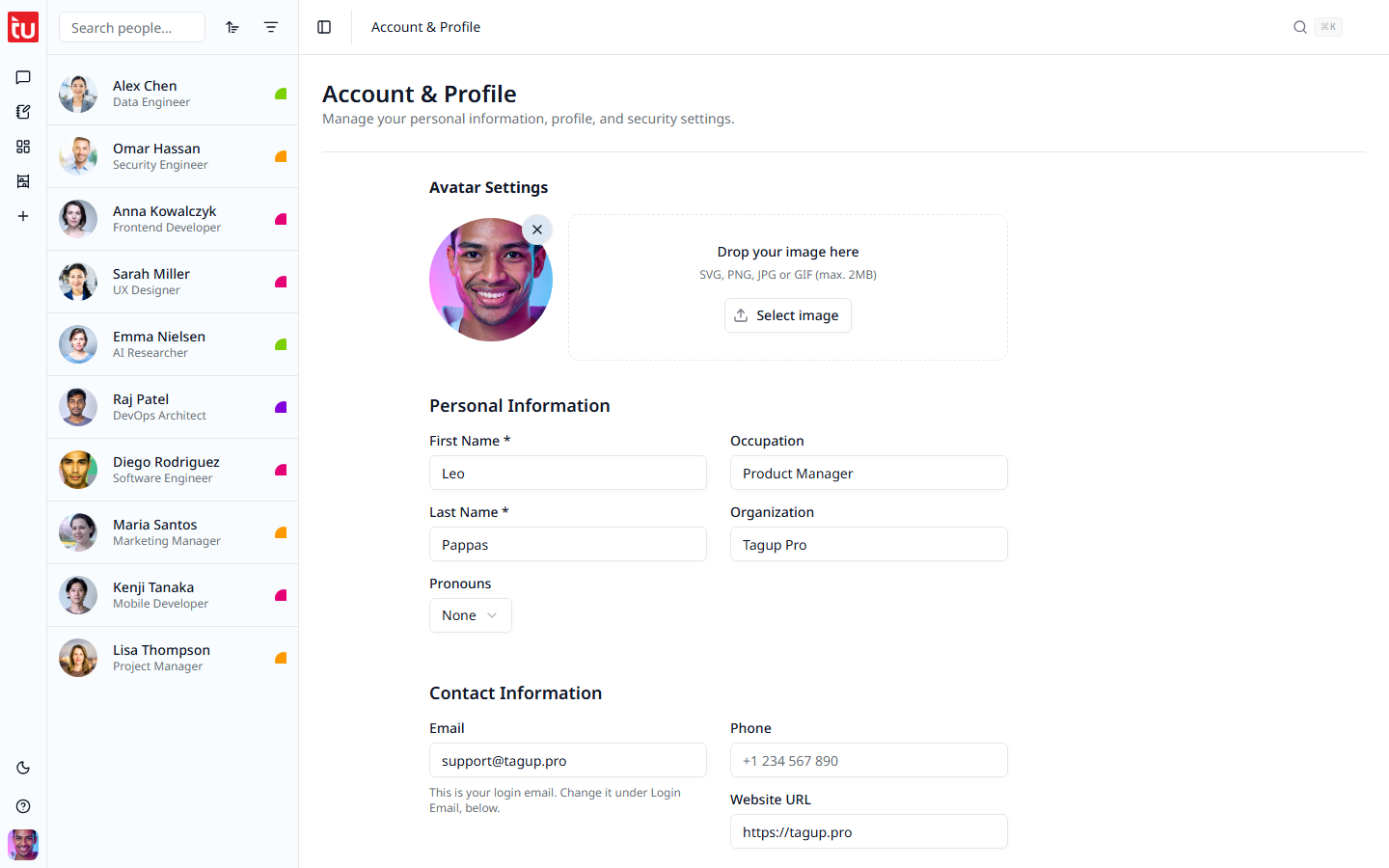
Press your avatar at the bottom of the left rail, then Account & Profile. This page holds your own record. It is separate from the contacts you keep.
Your picture
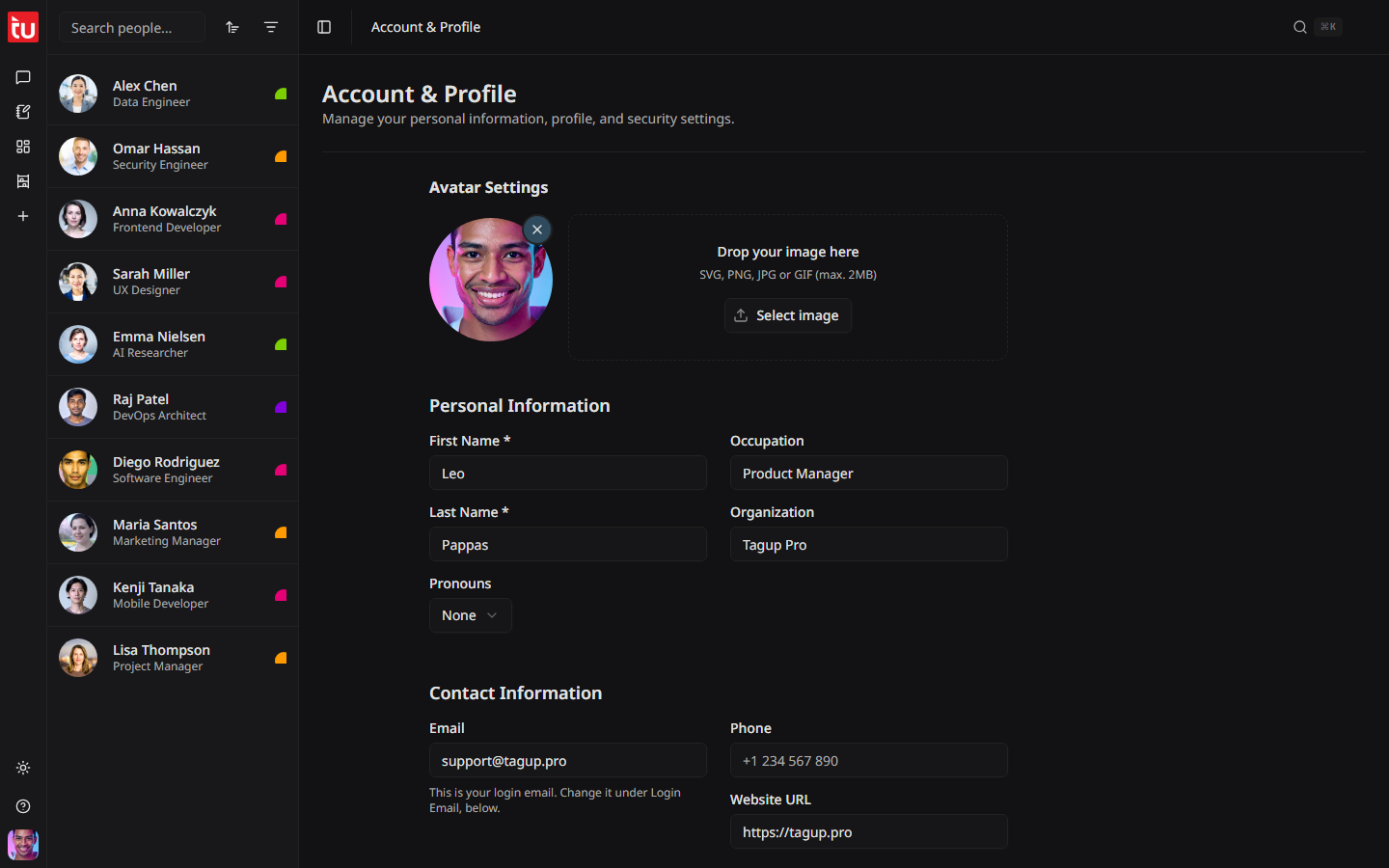
- Drop an image on the picture area, or press Select image
- SVG, PNG, JPG, and GIF, up to 2 MB
- Without one, Tagup shows your initials
Your details
Who you are
- First name and last name, both required
- Pronouns
- Occupation and organization
How to reach you
- Email. You cannot change it here: it shows your login email, which you change in Login Email, below.
- Phone and website
Where you are
City, state, country, and time zone. Pick the country first, because it narrows the time zone list.
Your location does more than look tidy. The Ask based on location consent setting reads it, so keep it right.
Press Save Changes when you are done.
Change your login email
You sign in with this address. Tagup also sends your password resets and your billing receipts to it.
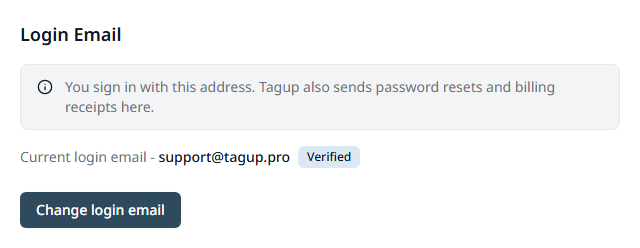
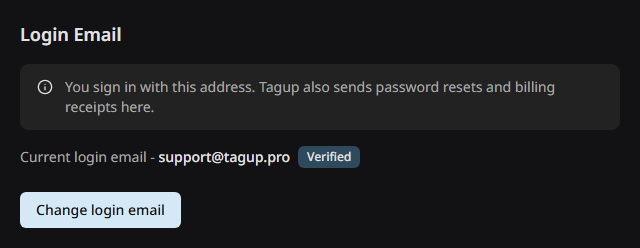
- Press Change login email.
- Type the new address, then press Send code.
- Open the email that Tagup sends to the new address, and copy the 6-digit code.
- Type the code, then press Verify and update.
Your current address keeps working until you type the code. If the code does not arrive, press Resend code. You can send a new code every 30 seconds.
A consent request stays with the address it was sent to. If other Tagup users asked to record you at your old address, ask them to use your new one.
If you sign in with Google, the section has no button. Change the address in your Google account. Tagup reads it again each time you sign in.
Change your password
Type the current password, then the new one twice.
A password needs at least 8 characters, with a capital letter, a small letter, a number, and a symbol.
Log out
Open the user menu and press Log out. Everything stays where it is, and it is all there when you sign in again.
Tips
- • Editing your account never touches a contact record. They are separate.
- • Set your time zone. The app uses it to work out the local time of the people you call.
- • Date format, the clock, and consent rules are in Settings, not here.
- • The people who asked to record you are on the Recording Consent page, in the user menu. See Recording Consent.