
Conversation Hub
An assistant that has read everything in your account
What it is
The Conversation Hub is the page you land on when you sign in. It is a chat window, and the assistant on the other side can read your people, your notes, your conversations, your commitments, and your follow-ups.
Ask it a question and it answers from your own records. Tell it what happened and it offers to write the records for you.

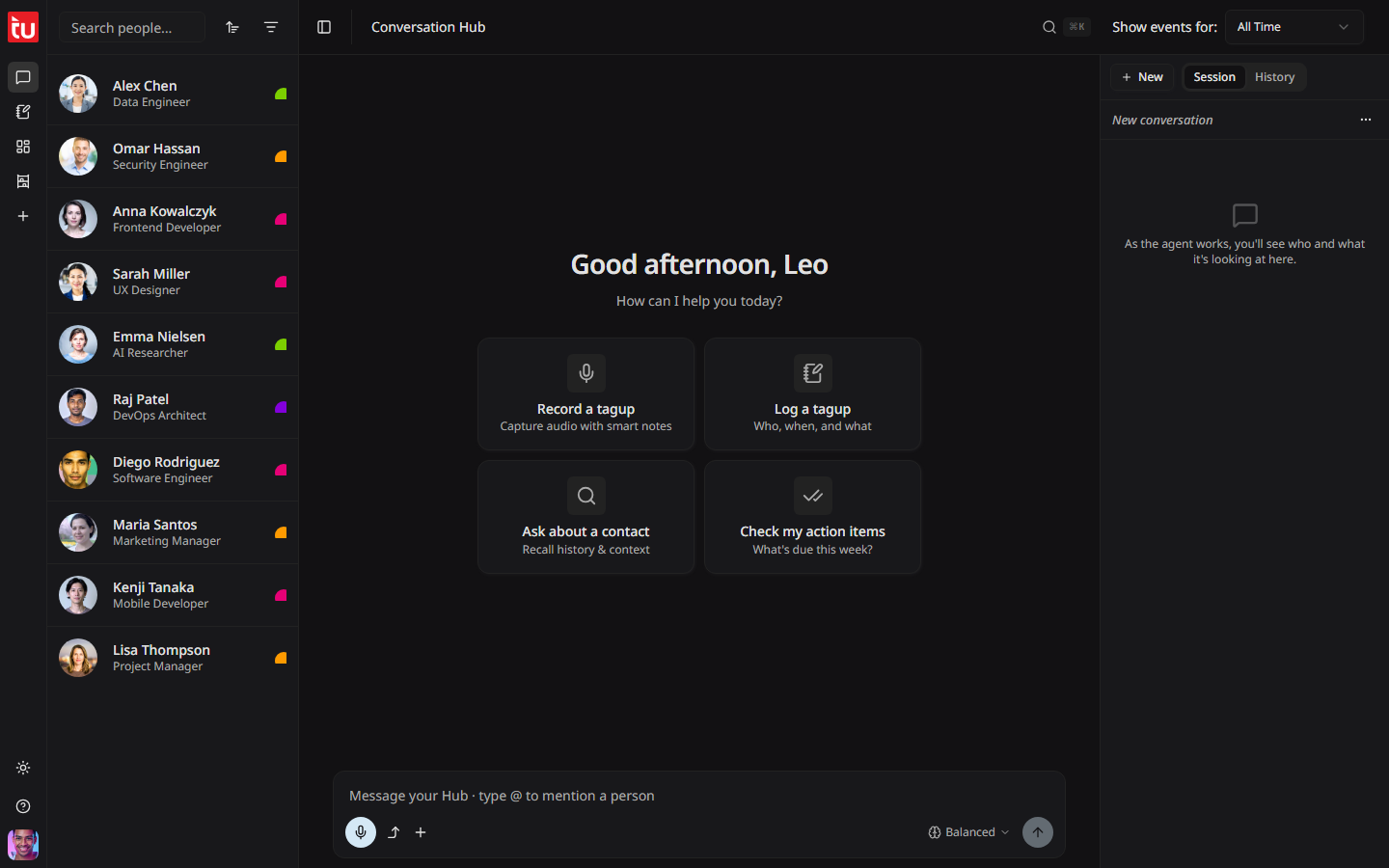
Four ways to start
A new conversation opens with four tiles. Press one, or just start typing.
The message box
How hard it thinks
The button beside Send sets how much work the Hub puts into the answer. The multiplier is how many AI credits the answer costs.
On Max the Hub thinks for a while before any text appears. The pause is normal.
Cards you confirm
The Hub never writes to your account on its own. When it wants to create or change something, it shows a card and waits.
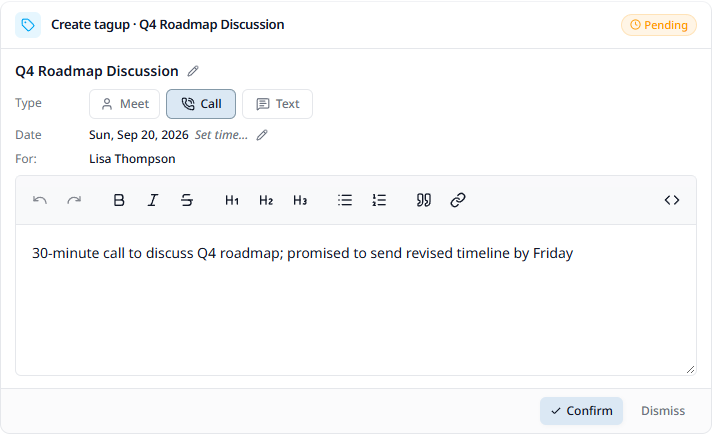
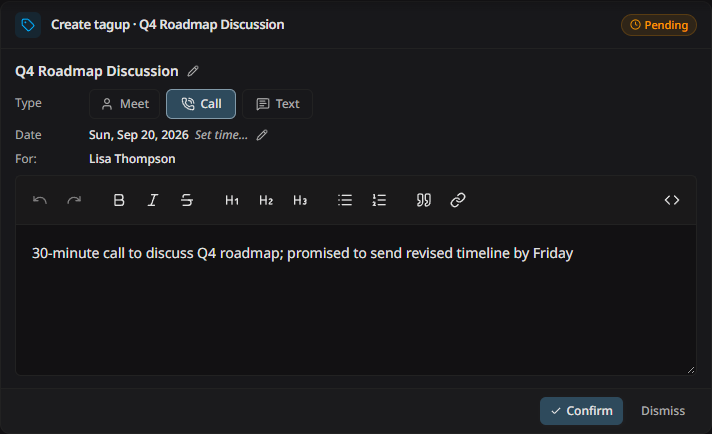
The Hub can propose a tagup, a task, a follow-up, a new contact, an edit to any of those, a completion, a deletion, or a file to save. A deletion always asks twice.
When it is not sure who you mean
If you say "Chen" and you have two, the Hub does not guess. A short panel appears above the cards with the choices. Pick one and the cards fill in.
Record a conversation here
Press Record a tagup, choose the person, and record. You can keep chatting while it records.
When you stop, you get the transcript and a notes box. Press Process with Hub and the agent reads the whole thing, drafts the tagup, and proposes the tasks and follow-ups it heard you agree to. You confirm each one.
The Smart notes switch controls whether the Hub writes a summary as well. Set it before you record. See Recording & Transcripts.
The right panel
The menu beside the conversation name lets you rename it or delete it. Deleting a conversation also removes the voice notes and the files that belong only to it.
Long conversations
When a thread grows long, the Hub summarises the earlier part and puts a line across the thread to show where. Press the line to read the summary. Nothing is lost, and the Hub keeps the thread of what you were doing.
Questions worth asking
Tips
- • Use @ for every person you mention. It is the single biggest thing you can do for the quality of the answer.
- • Stay on Balanced. Move to Max only when the answer comes back thin.
- • Read a card before you confirm it. The Hub gets the gist right and the detail wrong more often than the reverse.
- • Use the thumbs on a reply. It is how the Hub gets better at your account.
- • Your credit balance is in the user menu and on the Billing page.