
Sharing a Transcript
Send one conversation to the person you had it with
Nothing is sent on its own
Tagup never sends a transcript by itself. There is no automatic delivery and no setting that turns one on. You open one conversation, you look at what would leave your account, and you press Share.
A conversation can go to one person only: the contact it belongs to.
Send one conversation
Open the contact and find the tagup
Go to the Tagups section of their profile and find the conversation you want to send.
Open the row menu and pick Share
Press the three dots on the right of the row. This is the only way a conversation reaches a contact.
Read the preview
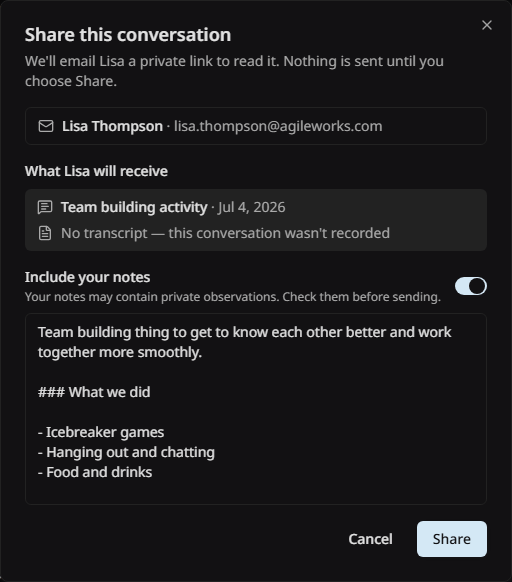
The dialog lists the exact contents of the message. Check it, then press Share.
What the dialog shows
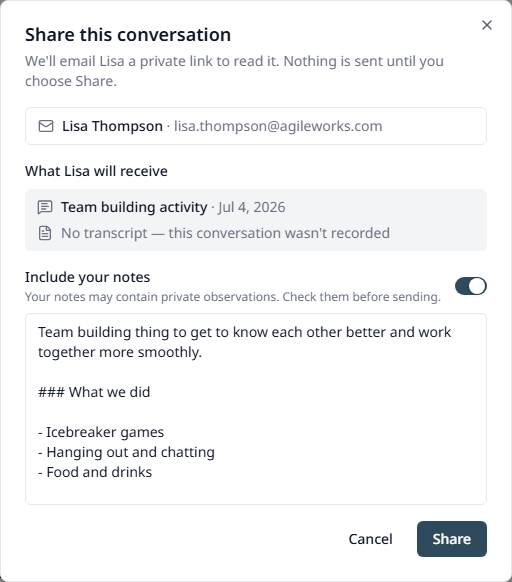
Why the notes switch starts off
Your notes are for you. They hold your own view of the person and of the conversation, and smart notes put an AI summary in the same field.
So the switch is off each time, and Tagup never remembers the last choice. Turning it on is a decision you make once per share, after you read the text.
How the contact reads it
Tagup emails a private link. The contact opens it and reads the conversation in their browser. They do not need a Tagup account.
The same page lists every conversation you have shared with them, so they have one place to go back to.
Share again after a change
If you edit the notes or the transcript later, open the dialog again and press Share again. The new version replaces what the contact can read at the same link.
The dialog tells you the date of the earlier share before you do it.
What the timeline shows
A conversation you have shared carries a short line in the timeline with the date. If the recording had a permission record, a small badge names which kind it was:
See Recording Consent for the difference between the two.
Good to know
- • Consent controls recording, not sharing. You can send a conversation to a contact who declined to be recorded, and Tagup shows their answer beside the button so you decide with the facts in view.
- • A conversation with no transcript and no notes has nothing to send, and Tagup says why the button is unavailable.
- • Sharing sends the text. The audio was already deleted after transcription.