
Getting Around
The layout of the app, and how to move through it
Three columns
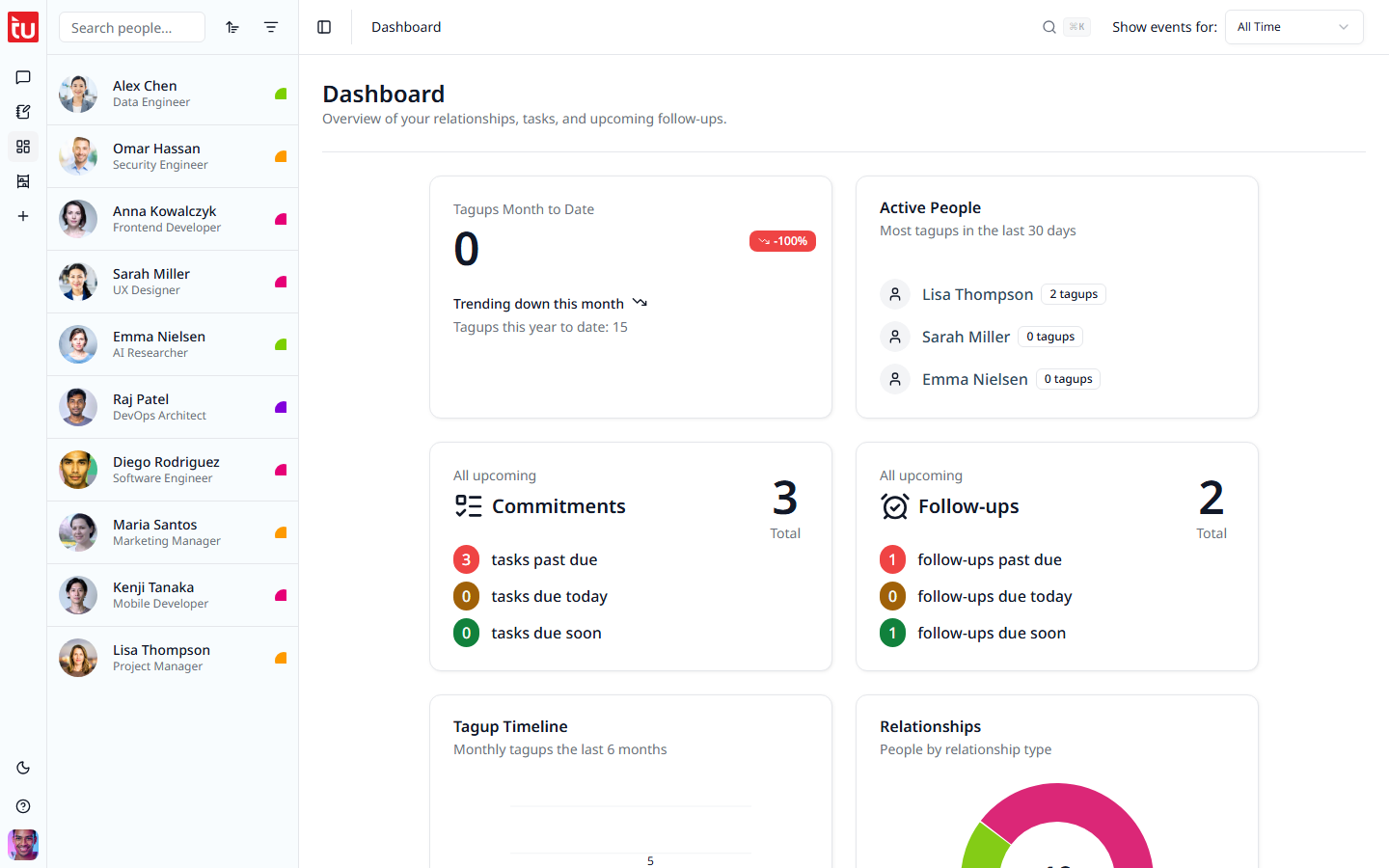
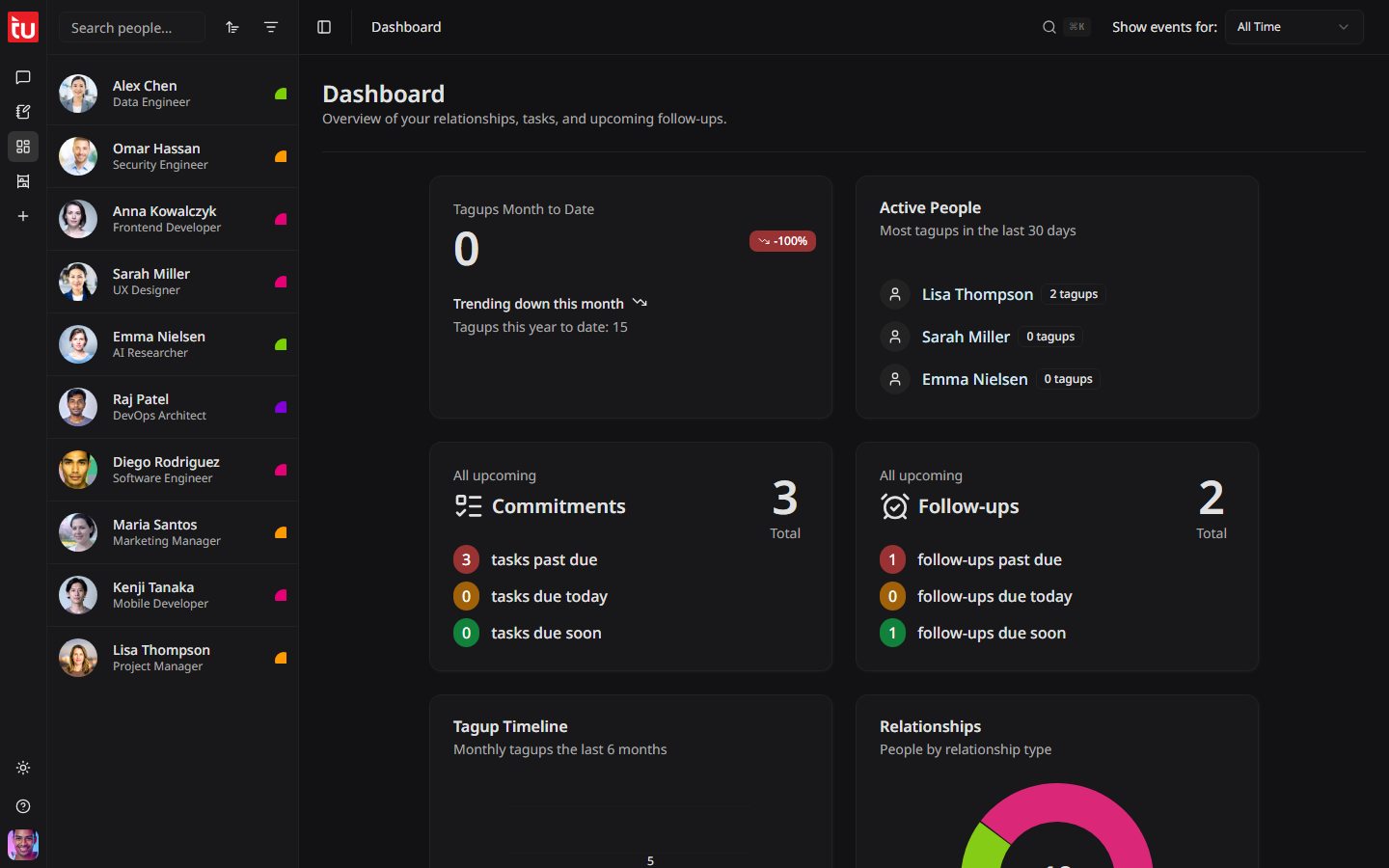
On a desktop screen the app has three parts: a narrow rail of icons on the far left, a list of your people beside it, and the page itself on the right.
The icon rail
Five buttons at the top take you to the main pages.
Three more buttons sit at the bottom of the rail.
On a phone the rail gains a People button, because there is no room for the people list beside it.
The people list
The second column lists your contacts. Press a name to open that person.
- Type in the box at the top to narrow the list by name
- Type two or more letters, then press "Search all records" to search everything, not just names
- Use the filter button to show only one relationship type or one tag
- Use the sort button to order by first name or last name
- The small coloured mark beside a name is the relationship type
The header
The bar across the top of every page holds four things.
The user menu
Press your avatar at the bottom of the rail.
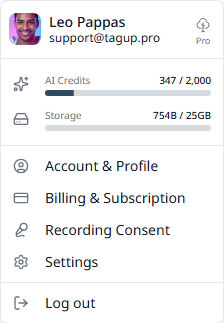
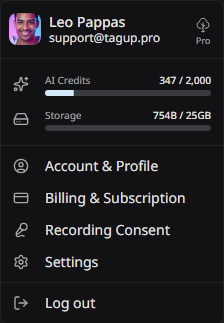
- Plan badge — Starter or Pro, beside your name
- AI Credits — how much of this month's allowance you have used
- Storage — how much of your file storage is in use
- Account & Profile — your own profile, your login email, and your password
- Billing & Subscription — your plan, your usage, and your payment history
- Recording Consent — the people who asked to record you, and your answers
- Settings — date format, clock, and other preferences
- Log out
Keyboard shortcuts
Light and dark
The theme button at the bottom of the rail switches the look. Your browser remembers the choice, so the app opens the same way next time.
On a phone
The three columns become one. The rail and the people list slide in over the page, and the sidebar button opens them. You can also install Tagup Pro as an app: your browser offers to add it to your home screen.
Next: the Dashboard →